Record desktop video with audio, hotkeys and watermarks
Super Screen Recorder is built for clear desktop video recording on Windows. Use it to create tutorials, software demos, presentations, and training videos. Record the full screen or a selected area, include microphone, speaker, or line-in audio, save as AVI or WMV, and add a text or image watermark automatically while recording.
- Size:
- 2.81 MB
- Price:
- $49.95


Super Screen Recorder Overview
Record screen activity in several ways
Choose the full screen, an active window, a selected region, or a fixed frame. Flexible recording modes make it easier to capture tutorials, walkthroughs, presentations, and troubleshooting videos without extra editing work.

Add text or image watermarks automatically
Add text, a PNG image, a signature, or a company logo while recording. Adjust color, size, opacity, and rotation to brand training videos, protect your work, or make recordings easier to identify.

Record HD screen video
Record at HD sizes such as 720p and 1080p when your display supports them. Export clear video files for lessons, support documents, demos, internal training, or long-term archiving.

Export Videos for Easy Sharing
Predefined size of the video will make you easier screen cast, include 360p (640x360) 480p (854x480) 720p (1280x720) 1080p (1920x1080). Just choose one of the multiple presets to prepare the screen video for sharing or archiving.

Record Sound from Microphone
Record narration from a microphone, system sound from your speakers, or audio from line-in while capturing the screen. This is useful for demos, walkthroughs, lessons, and narrated tutorials.
Multiple Video and Audio Compression
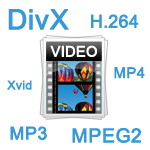
You can easily shrink the large file size of video files. You can choose different codecs (compressors) to record your video. You can choose any codec available in your computer. Change compression options like quality, key frame rate etc.
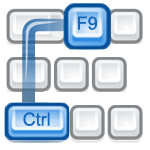
Define shortcut keys
Set hotkeys for starting, pausing, and stopping a recording. Keyboard shortcuts help you control the capture without interrupting the video.

Small File Size and Keep High Quality
You really need to downsize your capture videos and keep good quality. if you want to watch your videos on local playback, training libraries, or online media, video size reduction is absolutely essential.

Powerful File Manager
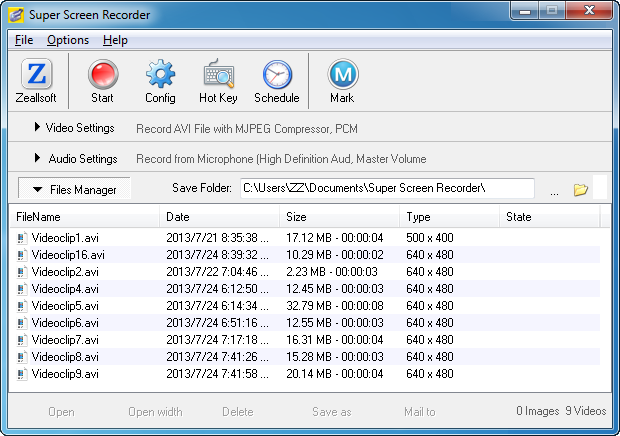
If you record a lot of video files that you want to manage them, this is right function for you. You can delete, open, move and share the video file. And view the videos duration, file size, and create time on the file manager.

Schedule Record Tasks
You can configure the start capture and end capture times for recording, It will automatically record screen video in your set time. Now you can do other work, do not need to process it.
System Requirements:
- Windows XP/Vista/7/8 or Win Server 2003/2008
- 1GB free disk space
- 1GHz Intel/AMD processor or above
- Super VGA (800脳600) resolution, 16-bit graphics card or higher